Run the interaction.
Pong runs directly on the Live Editor canvas. Check the moving ball and the responses before starting a participant session.
SIGMA Builder · Experiments built around attention
Design the participant screen in the Live Editor, switch display formats and test routines in place. Generate text AOIs, connect gaze to actions and exchange image or video regions with PeriTag.
macOS & Windows
Visual study authoring
Optional Python extensions
Local data
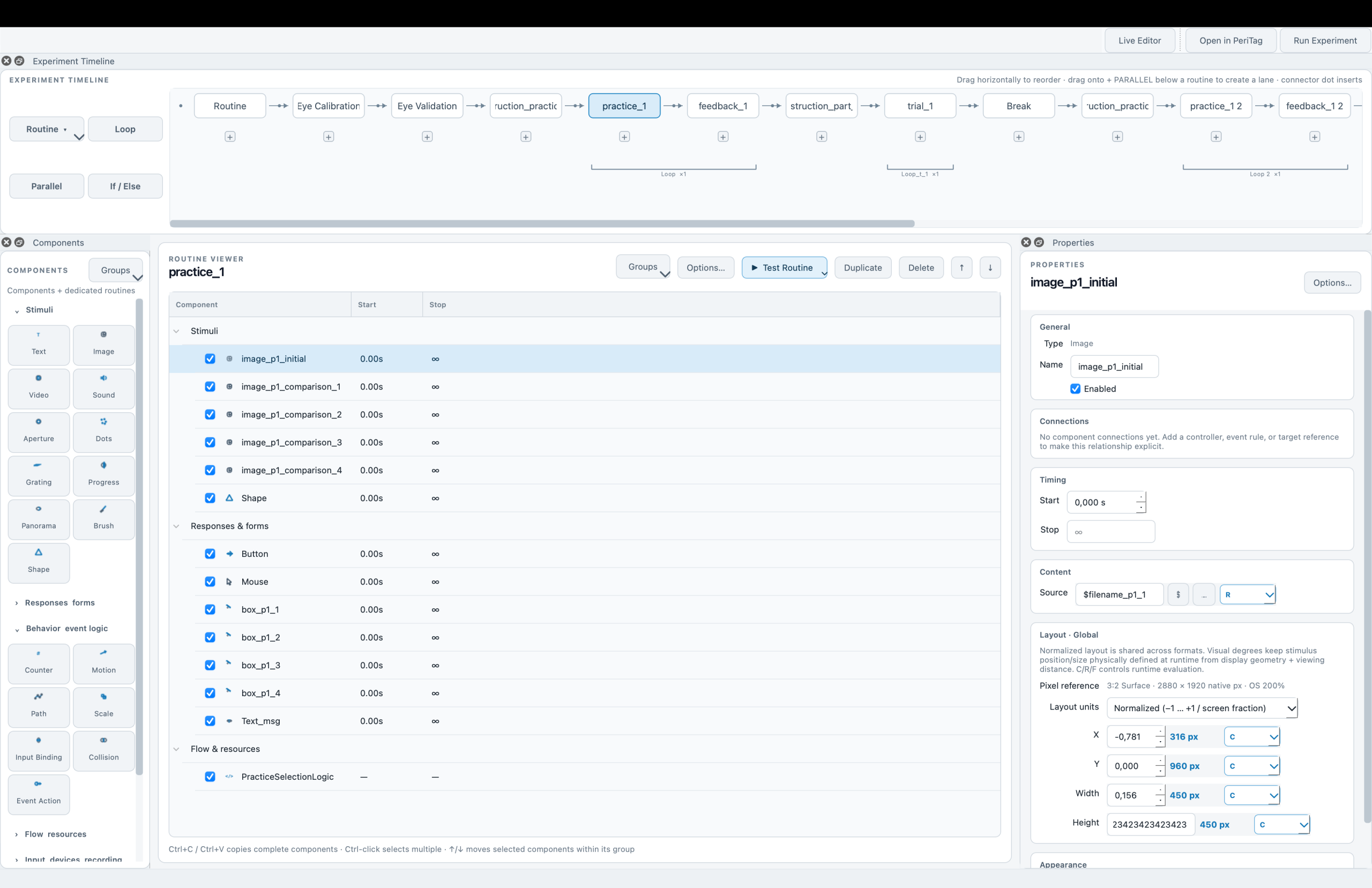
Live Editor · Design / Behavior / Test
Work directly on the participant canvas. Check how the same routine fits different display profiles, then try it inside the editor.
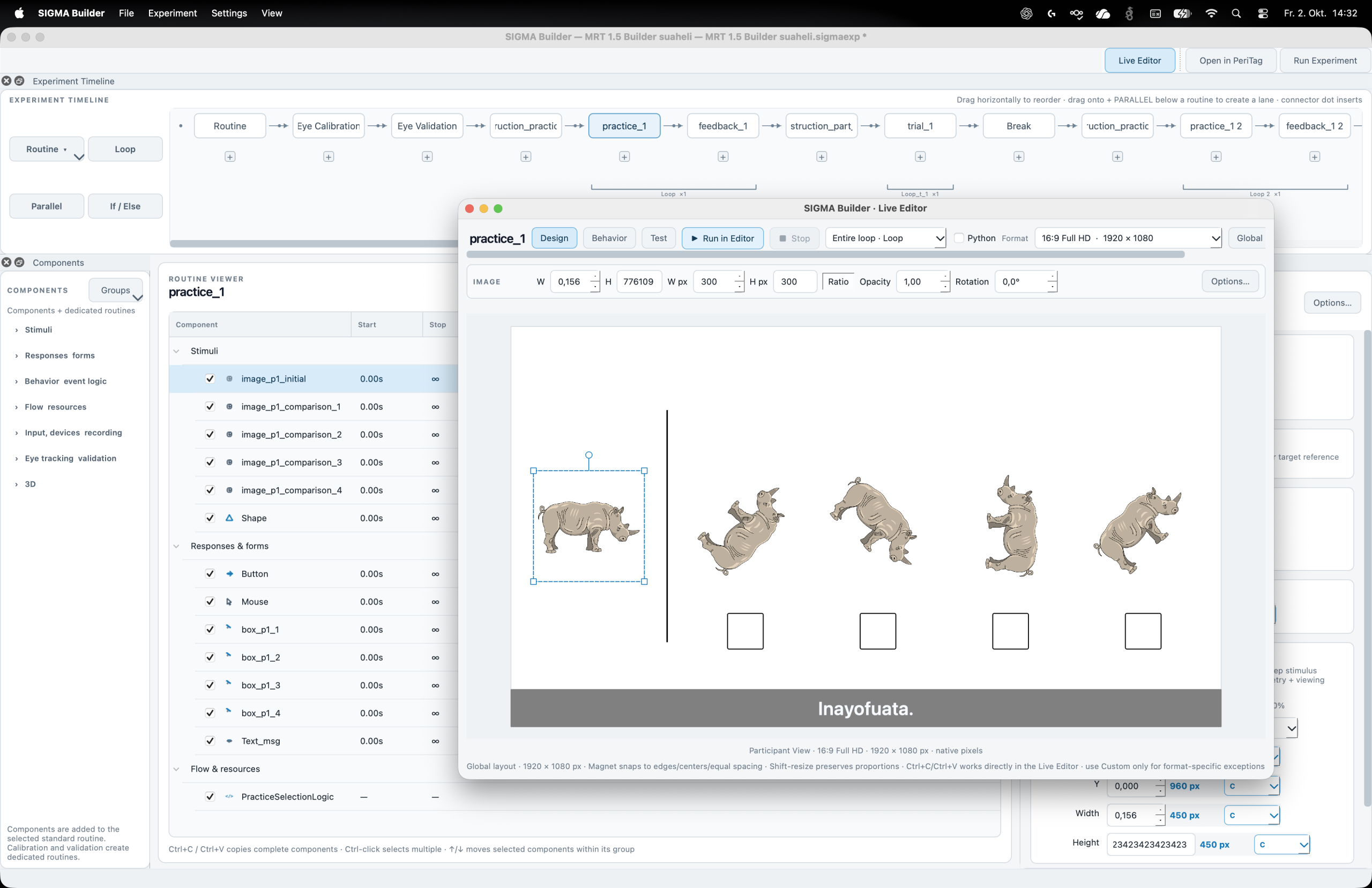
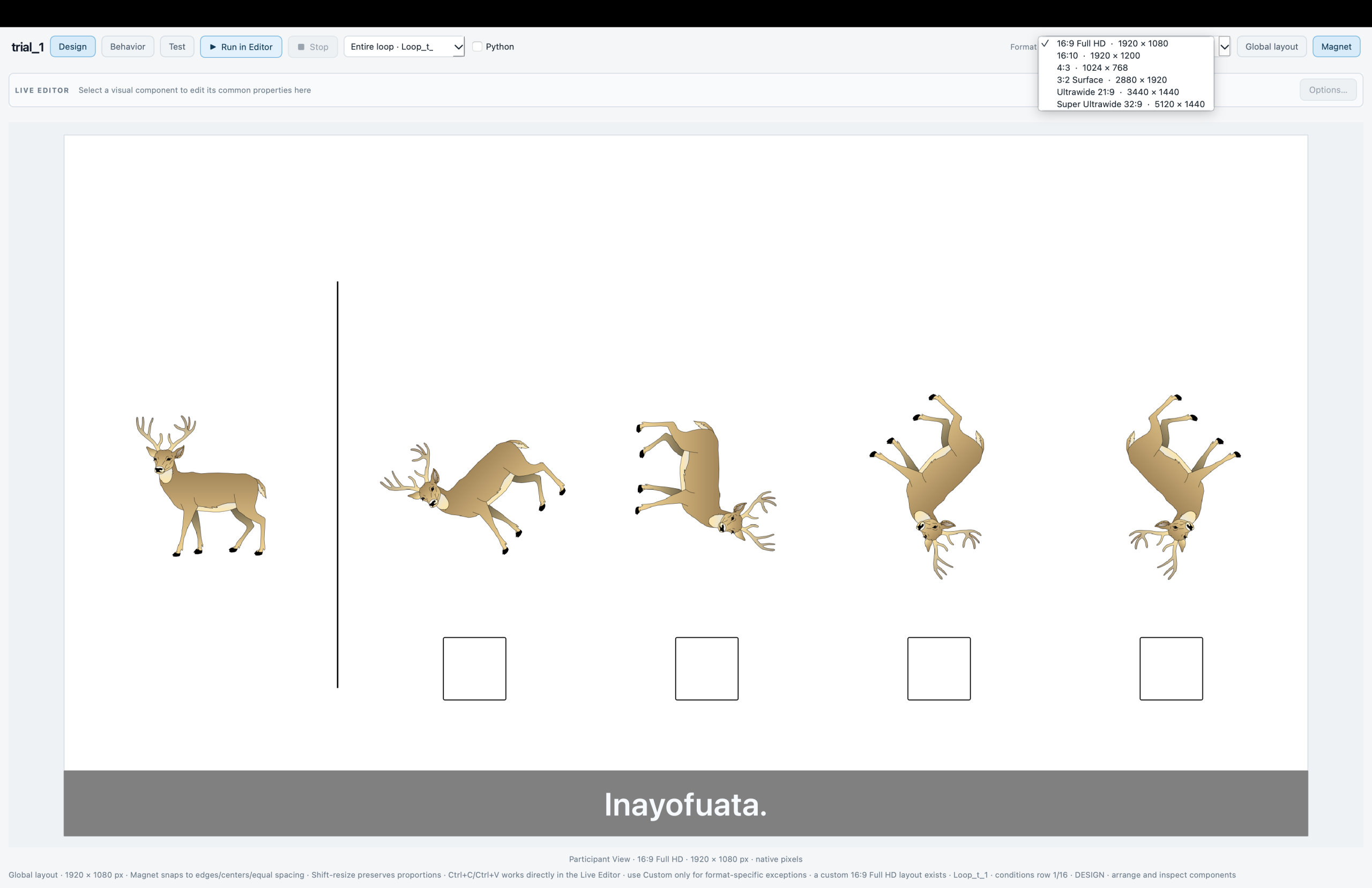
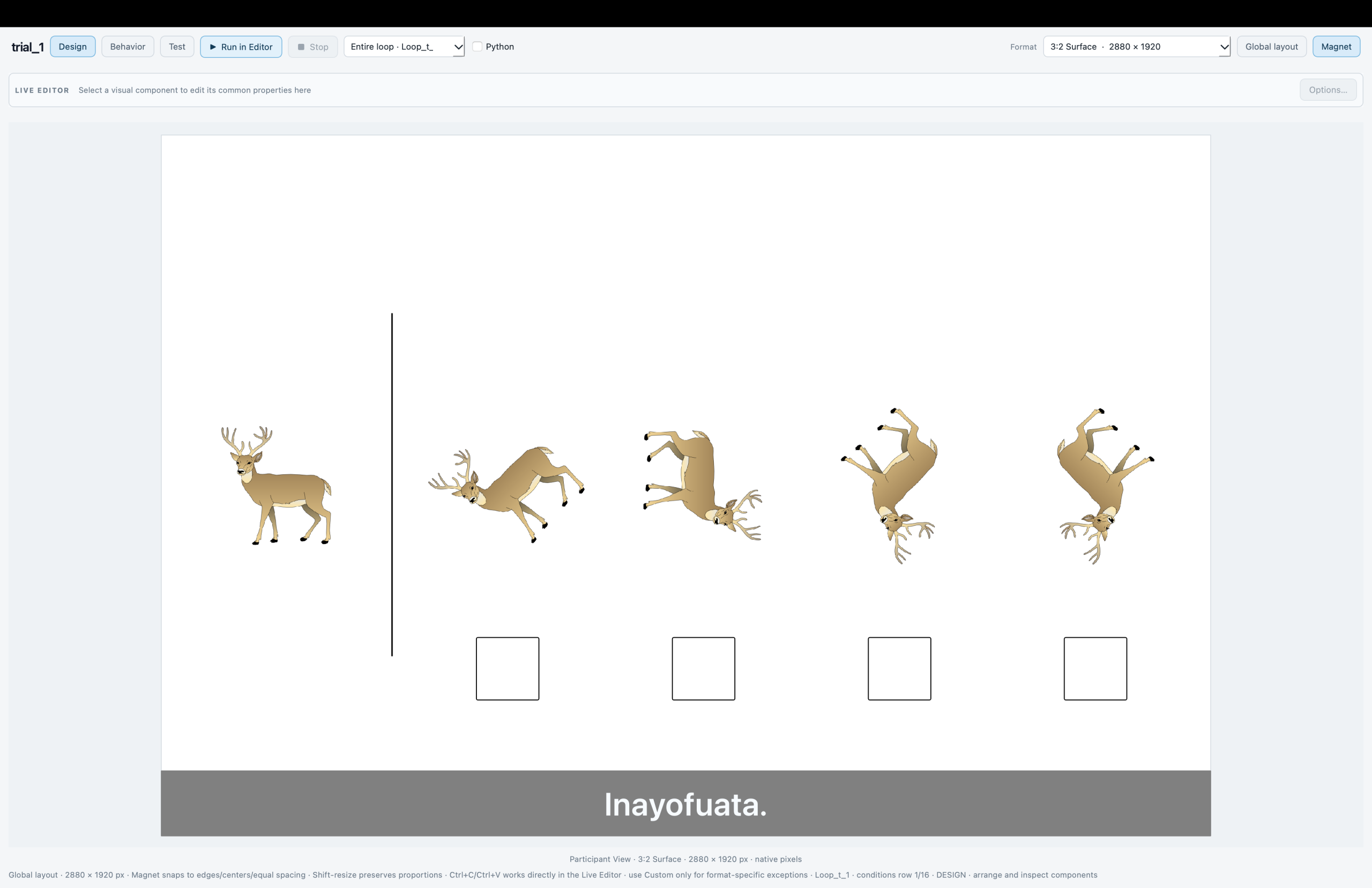
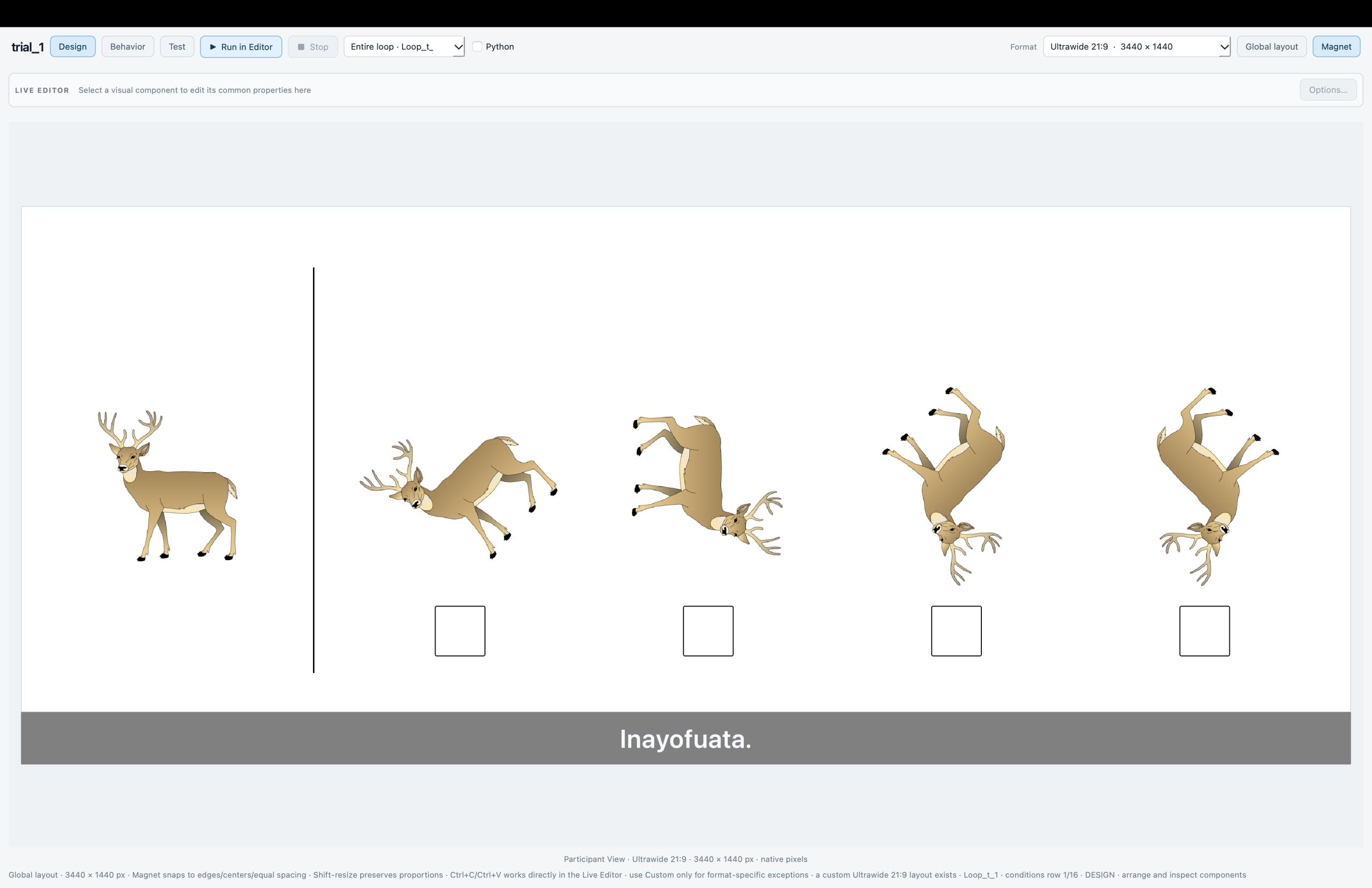
Full HD · 1920 × 1080
Surface 3:2 · 2880 × 1920
Ultrawide · 3440 × 1440
Editor tests run without hardware or eye tracking; device workflows use the participant runtime.
Live Editor · Run in Editor
Preview an interactive task and keep its event logic in view before starting the participant session.
Pong runs directly on the Live Editor canvas. Check the moving ball and the responses before starting a participant session.
The Event Logic panel stays beside the running task, with motion, input, rules and event actions in the same workspace.
Why SIGMA Builder
Build the experimental logic around what participants read, see and attend to. These capabilities stay connected to the scientific session record.
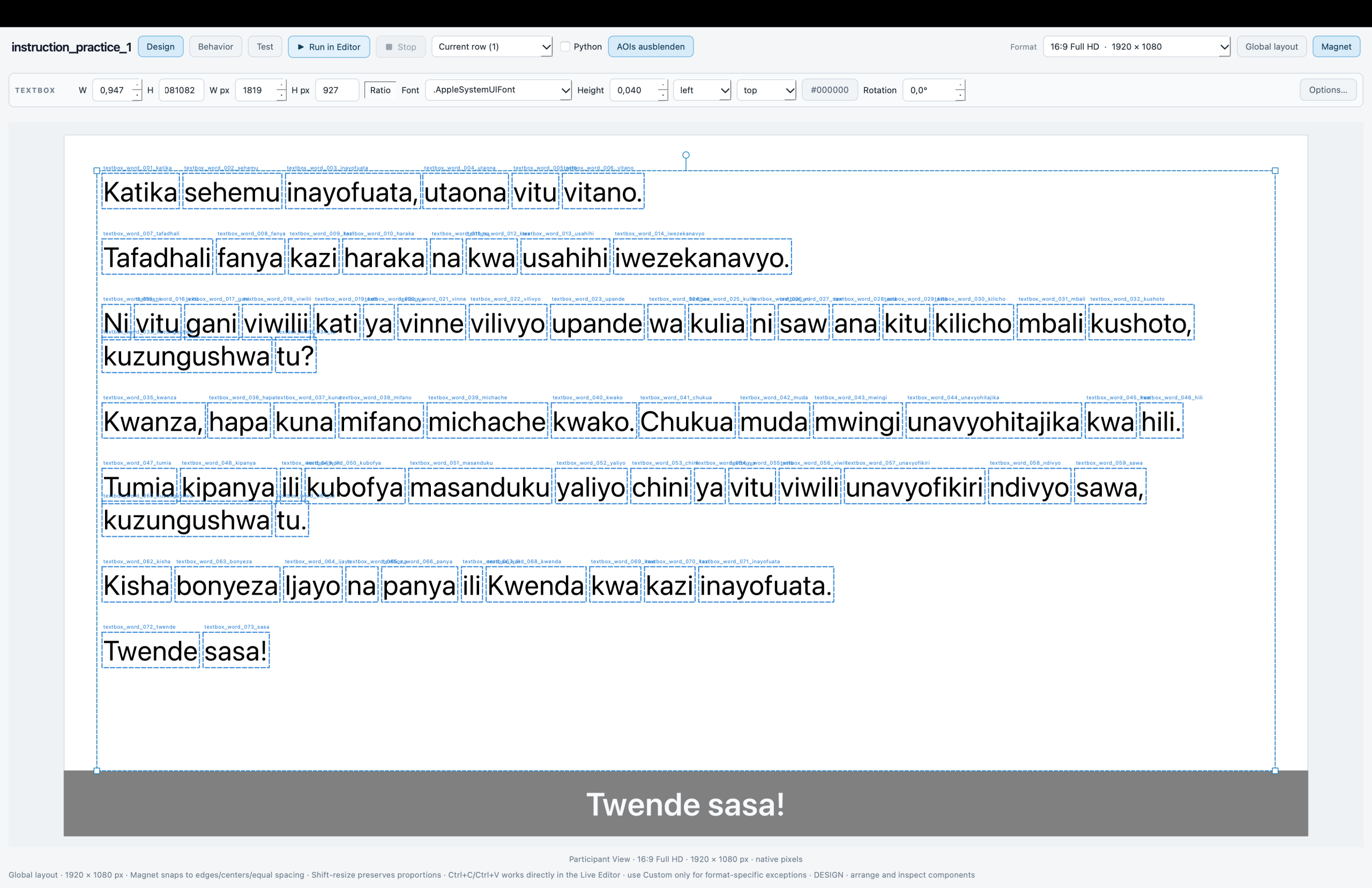
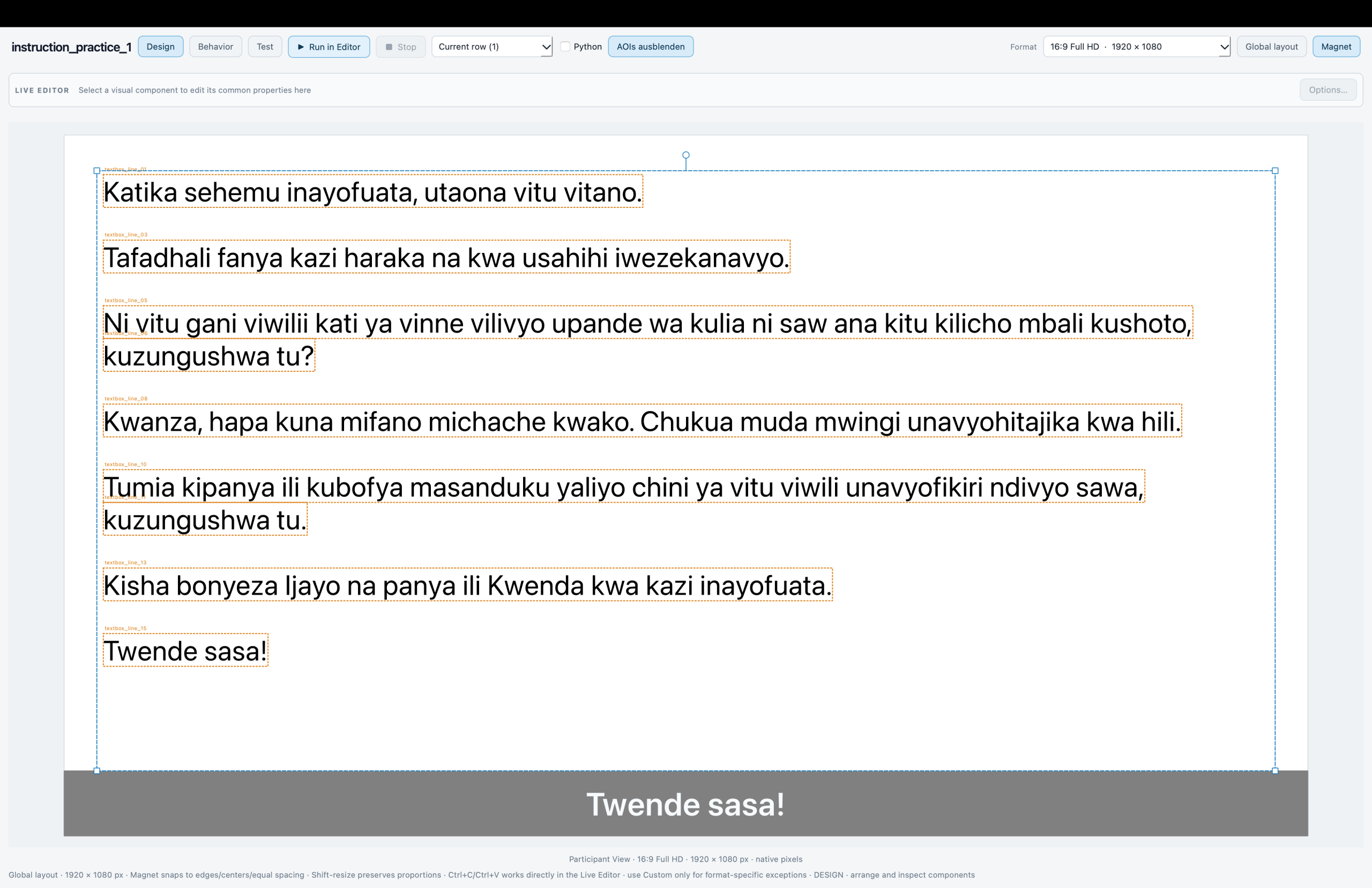
Author native text and generate word and line regions directly from its layout. The session retains the presented wording, region geometry and trial context for later analysis.
GAZE → EVENT → ACTION
Look
Gaze input
Target AOI
500 ms dwell
Action
Show stimulus
Illustrated example · gaze → dwell → stimulus
Respond when gaze enters, leaves or dwells in an area. Show or hide components, change a variable, write a marker or end a routine through visible settings.
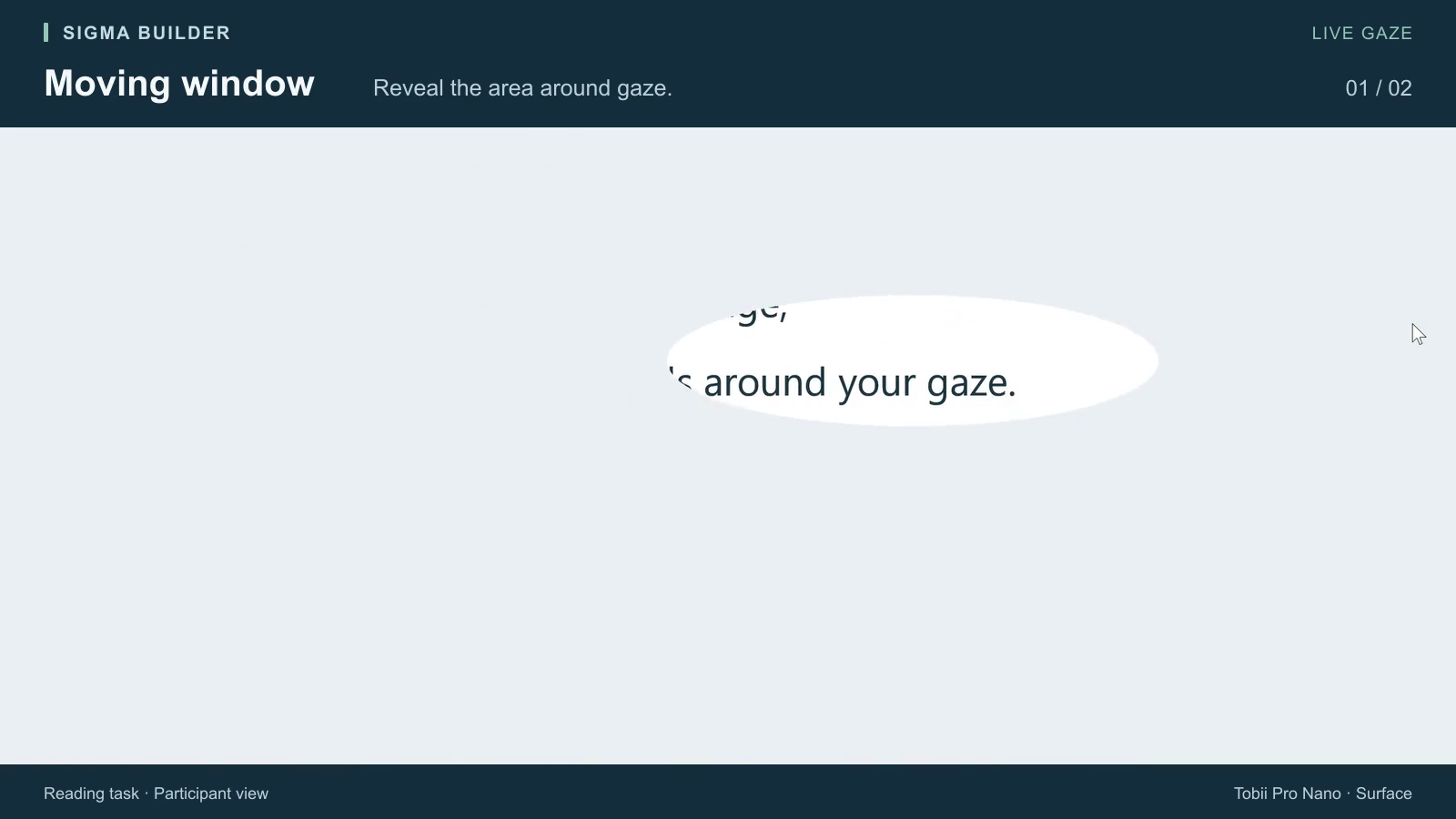
Use a gaze-following moving window or scotoma. Configure its shape, size and edge to study foveal access, peripheral information or attention-dependent viewing.
Configure Staircase, QUEST or QUEST+ in the loop settings. Connect a response variable to the next stimulus level and retain the decision history with the trial.
STUDY → APPLICATION → STUDY
01 · Study
02 · Application
03 · Study
PARTICIPANT TASK
+
Begin the application task
Continue to the next routine
Application task
Compare the options
A
B
C
Pointer
REC
Frame 1
Frame 2
Frame 3
Frame 4
Frame 5
Frame 6
Frame 7
Frame 8
Frames + timing
Illustrated workflow · capture the task, then continue the study
Let participants use a browser or another application during a recording phase. Capture the desktop, keep optional gaze recording active and return to the experiment afterwards.
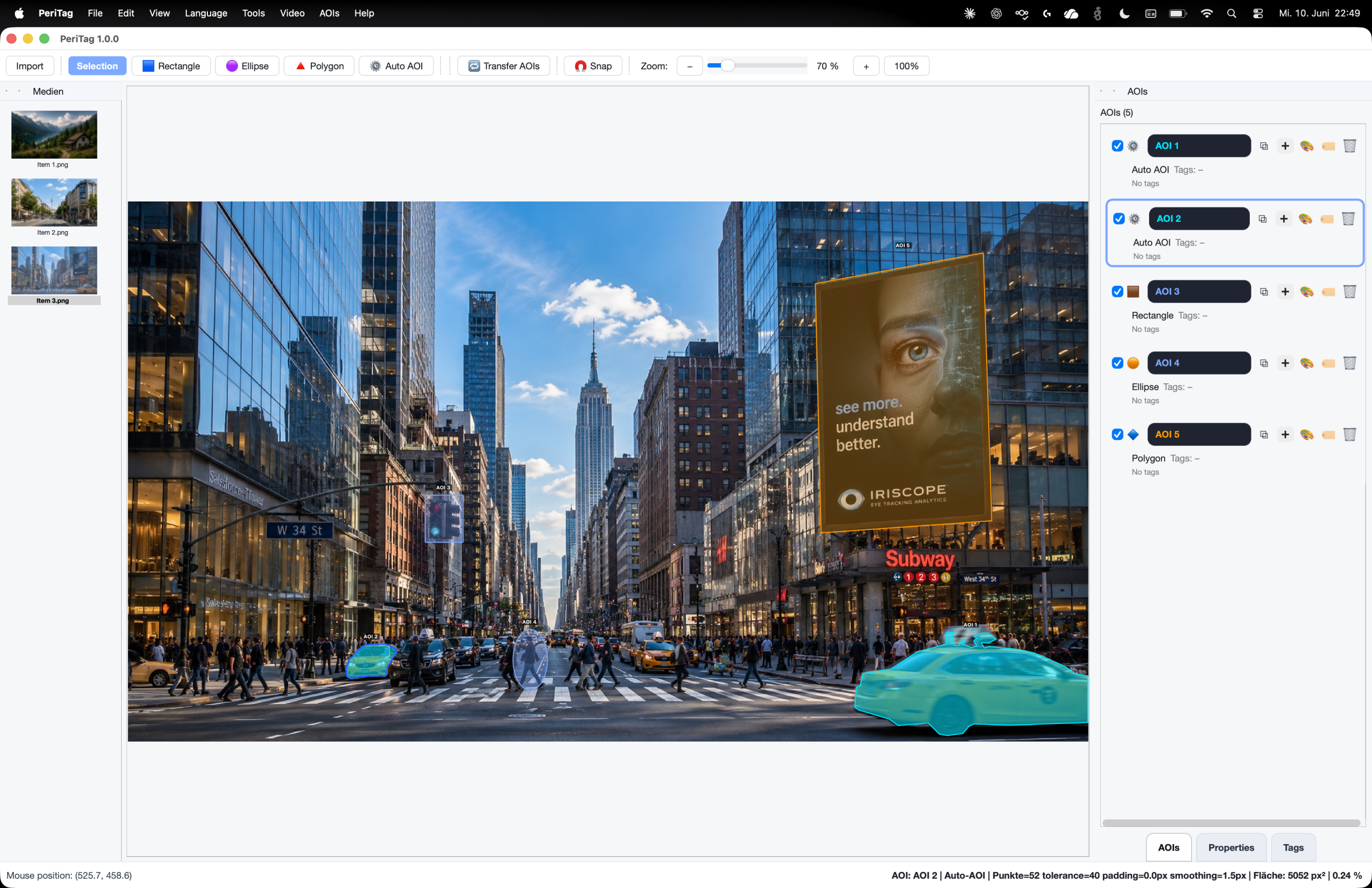
Send image and video stimuli from Builder to PeriTag, annotate them and return the AOIs to their original components. Use static regions and time-varying tracks in the experiment.
For reading research
A reading study needs more than a text screenshot and a stream of gaze coordinates. Builder connects the passage participants encounter with the word and line regions used to interpret it.
Moving Window & Scotoma
Reveal a window around gaze or hide it with a scotoma. Watch both effects in one real reading task.
The area around gaze stays visible. The surrounding text is masked.
The area around gaze is masked. The surrounding text stays visible. The second effect starts at 14 seconds.
Gaze-contingent experiments
Configure the relationship between a gaze event and an experimental action. Use it for fixation-gated tasks, attention-dependent stimulus changes and controlled visual-access paradigms.
GAZE → EVENT → ACTION
Look
Gaze input
Target AOI
500 ms dwell
Action
Show stimulus
Illustrated example · gaze → dwell → stimulus
01
Use a component area or a static or dynamic AOI from PeriTag as the gaze target.
02
Choose entering, leaving, remaining inside or outside, or dwelling in the region. Set the dwell duration where needed.
03
Reveal a component, update a variable, mark an event or finish a routine. The trigger and action remain visible in the Builder.
Example: Reveal a target after a defined dwell on a fixation region, then collect the participant’s response. For a different paradigm, use a moving window to limit visible information around gaze.
Research applications
Builder combines stimulus presentation, participant responses and acquisition context so that the study structure remains visible as the task grows.
01
Let a recorded response determine the next trial level through Staircase, QUEST or QUEST+. Settings and response connections remain inspectable in the experiment.
02
Combine text, images, shapes, motion and gaze-dependent visibility. Keep component areas tied to the presented display context.
03
Insert a browsing or software-use phase, record the display with frame timing and optional gaze, then continue with the next study routine.
From design to session
A separate participant runtime and an explicit preparation flow help you move from the authoring workspace to a reviewable research session.
Eye-tracker availability depends on the model, operating system and required manufacturer software. Presentation and device timing should be checked on the workstation used for the study.
Builder ↔ PeriTag
Study authoring and annotation are connected in both directions. You can prepare image and video regions in PeriTag without losing the relationship to the components in your experiment.
THE AOIs RETURN WITH THEIR CONTEXT
01 · BUILDER
Send the stimuli
Images & videos
02 · PERITAG
Define the AOIs
Names & boundaries
03 · BUILDER
Bring regions back
Matched components
Illustrated exchange · Builder → PeriTag → Builder
The connected SIGMA workflow
Move from experimental control to AOI preparation and eye-tracking analysis while keeping the material and methods understandable.
01
Author the experiment and record the participant experience, with its stimulus, display and session context.
02
Create, label and maintain static or dynamic AOIs for visual material and moving objects.
03
Inspect the imported session, apply analytical workflows and share prepared projects with the free Reader.
Start with your research question
Explore the Builder on your workstation or tell us about the task, eye-tracker and analytical workflow your study needs.
Choose macOS or Windows, check the current version and find earlier releases in the download overview. Software licenses and PeriTag access are available on request.